讓我們來用 React Native 和 Expo,還有 TypeScript 來寫一個計算機手機 App 吧!
什麼是 React Native?
React Native 是一個用於構建移動應用程序的 JavaScript 框架。可以讓開發者使用 ReactJS 為 iOS 和 Android 平台創建手機 App。 React Native 提供了一套預構建的組件,可以用來構建應用程序的用戶界面,使得創建移動應用程序變得快速而簡單。
什麼是 Expo?
Expo 是一套用於構建和部署 React Native 應用程序的工具和服務。它為開發者提供了一個平台,可以在各種設備和平台上輕鬆設置、運行和測試他們的 React Native 應用。 Expo 還提供了一系列的 library 和 API,可用於為應用程序添加功能,如照相、推送通知等。
建立專案
首先來建立專案,如果這個專案取名為 calculator,那麼就執行以下指令:
npx create-expo-app calculator --template
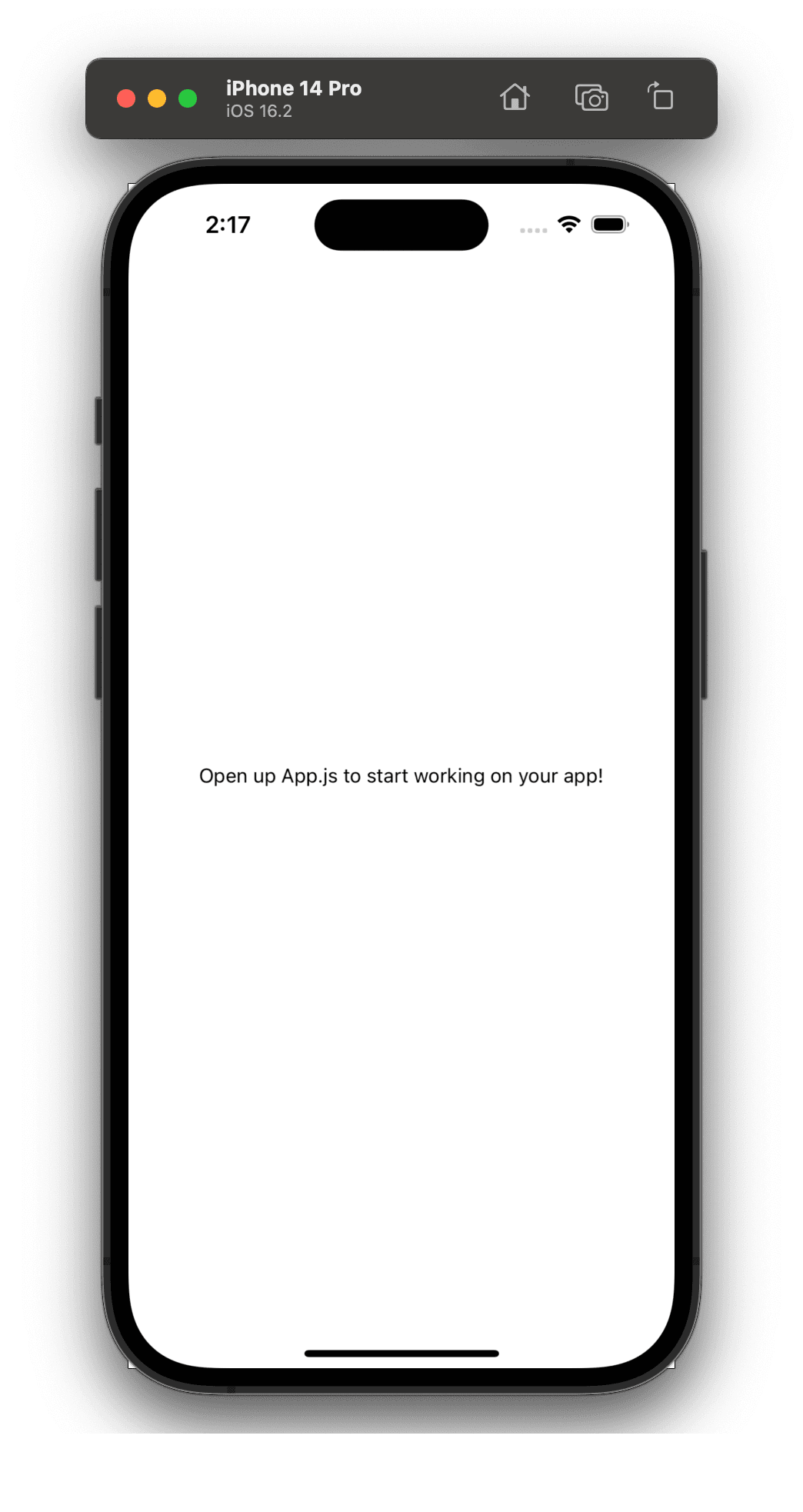
20230218021734
因為我們要使用 TypeScript,所以我們要選擇 blank (TypeScript)。
安裝如果沒問題的話,就會顯示以下訊息:
✅ Your project is ready!
20230224005423
接下來就進入專案目錄後,啟動專案:
expo start
然後按下 i,就會打開 iOS 模擬器,如果要使用 Android 的話,就按下 a。
安裝樣式套件
因為我覺得 React Native 的樣式寫起來很麻煩,而且已經很習慣 TailwindCSS 了,所以我們要安裝 NativeWind 這個套件。
yarn add nativewind
yarn add --dev tailwindcss
接下來我們要建立 tailwind.config.js 這個檔案:
module.exports = {
content: ["./App.{js,jsx,ts,tsx}", ".//**/*.{js,jsx,ts,tsx}"],
theme: {
extend: {},
},
plugins: [],
}
並且在 babel.config.js 中加入 plugin:
module . exports = function ( api ) {
api . cache ( true ) ;
return {
presets : [ "babel-preset-expo" ] ,
+ plugins : [ "nativewind/babel" ] ,
} ;
};
然後來測試一下是否有安裝成功
這是原本的 App.tsx:
import { StatusBar } from 'expo-status-bar' ;
import { StyleSheet , Text , View } from 'react-native' ;
export default function App ( ) {
return (
< View style = { styles . container } >
< Text > Open up App.tsx to start working on your app! </ Text >
< StatusBar style = " auto " />
</ View >
) ;
}
const styles = StyleSheet . create ( {
container : {
flex : 1 ,
backgroundColor : '#fff' ,
alignItems : 'center' ,
justifyContent : 'center' ,
} ,
} ) ;
我們把 styles 拿掉,並改成 className:
import { StatusBar } from 'expo-status-bar'
import { Text, View } from 'react-native'
export default function App() {
return (
Open up App.tsx to start working on your app!
)
}
然後眼尖的你可能會發現到,在 className 下會出現紅色的線。不用擔心,官網有提到如何解決這個問題,只要再新增一個 app.d.ts 檔案就可以了:
///
上面的部分是 TypeScript 才需要做的步驟,如果你是用 JavaScript 的話,就不需要做這個步驟。
接下來會分成:
建立重複使用的元件
計算的邏輯撰寫
整合成完整 App
建立重複使用的元件
按鈕
首先因為計算機有很多按鈕,所以我們要建立一個重複使用的元件,這樣就不用每次都要寫一個按鈕。
import {
Text,
TouchableOpacity,
TextProps,
TouchableOpacityProps,
} from 'react-native'
import classNames from 'classnames'
type ClickButtonProps = TouchableOpacityProps & {
text: string
size?: 'double'
theme?: 'primary' | 'secondary' | 'accent'
textProps?: TextProps
}
const ClickButton = ({
onPress,
text,
size,
theme = 'primary',
textProps,
...rest
}: ClickButtonProps) => {
return (
<TouchableOpacity
onPress={onPress}
className={classNames({
"rounded-full flex-1 items-center justify-center m-2": true,
"h-[84px]": true,
"w-[84px]": true,
'w-full': size === 'double',
'bg-primary-btn': theme === 'primary',
'bg-secondary-btn': theme === 'secondary',
'bg-accent-btn': theme === 'accent'
})}
{...rest}
testID='click-button'
>
<Text
className={classNames({
'text-3xl font-bold text-center': true,
'text-white': theme === 'secondary' || theme === 'primary',
})}
{...textProps}
>
{text}
)
}
export { ClickButton }
我們先建立一個自定義的 ClickButton 元件。
首先 ClickButtonProps 需要繼承來 React Native 的 TouchableOpacityProps,並增加一些自己的 props 型別,包括:
text:按鈕上顯示的文字。
size:按鈕的大小,為可選的 double,默認為按鈕的標準大小。
theme:按鈕的主題,為可選的 'primary'、'secondary' 或 'accent',默認為 'primary'。
textProps:文字元件的 props,用於按鈕上文字的樣式。
這個元件使用了 React Native 提供的 TouchableOpacity 原生元件,可以把它當成 Web 中的 ,然後我們傳遞了一些 props。這些 props 包括:
onPress:當按鈕被點擊時觸發的回調函數。
className:應用在 TouchableOpacity 元件上的樣式類。
...rest:傳遞所有其餘的 props 到 TouchableOpacity 元件中。
此外,ClickButton 元件也使用了一個 React Native Text 元件,可以當成
。我們用於顯示按鈕上的文字,並傳遞了一些 props。這些 props 包括:
className:應用在 Text 元件上的樣式類。
...textProps:傳遞所有其餘的 props 到 Text 元件中。
最後,classNames 這個套件可以幫助我們來判斷條件,並且跟 TailwindCSS 搭配使用,可以讓我們更方便的撰寫樣式。
Row
接下來我們要建立一個 Row 元件,用於顯示按鈕的排列方式。
import { View } from 'react-native'
type RowProps = {
children : React . ReactNode ;
} ;
const Row = ( { children , ... rest } : RowProps ) => {
return (
< View className = ' flex-row items-center gap-1 ' { ... rest } >
{ children }
</ View >
)
}
export { Row }
這個部分就比較簡單,一樣自定義一個 Row 元件。
然後 TypeScript 一樣都先起手式定義型別,RowProps 定義了一個必需的 children,用於渲染元件內的子元素。是一個 React Node,可以是一個或多個 React 元素。
Row 使用了 React Native 的 View 元件,可以把它當成
來看。
然後 View 的樣式排列方式預設是用 Flexbox,並且是垂直排列,所以我們要將它改成水平排列。
計算的邏輯撰寫
這個部分非常重要,因為是主要的功能邏輯。
export type State = {
currentValue : string
operator : string | null
previousValue : string | null
}
export const initialState : State = {
currentValue : '0' ,
operator : null ,
previousValue : null
}
export const handleNumber = ( value : string , state : State ) : State => {
return {
... state ,
currentValue :
state . currentValue === '0' ? ` ${ value } ` : ` ${ state . currentValue } ${ value } `
}
}
const handleEqual = ( state : State ) : State => {
const { currentValue , previousValue = '0' , operator } = state
const current = parseFloat ( currentValue )
const previous = parseFloat ( previousValue as string )
const resetState = { operator : null , previousValue : null }
switch ( operator ) {
case '+' :
return {
... resetState ,
currentValue : ` ${ previous + current } `
}
case '-' :
return {
... resetState ,
currentValue : ` ${ previous - current } `
}
case '*' :
return {
... resetState ,
currentValue : ` ${ previous * current } `
}
case '/' :
return {
... resetState ,
currentValue : ` ${ previous / current } `
}
default :
return state
}
}
const calculator = ( type : string , value : string , state : State ) : State => {
switch ( type ) {
case 'number' :
return handleNumber ( value , state )
case 'clear' :
return initialState
case 'toggleSign' :
return {
... state ,
currentValue : ` ${ parseFloat ( state . currentValue ) * - 1 } `
}
case 'percentage' :
return {
... state ,
currentValue : ` ${ parseFloat ( state . currentValue ) * 0.01 } `
}
case 'operator' :
return {
operator : value ,
previousValue : state . currentValue ,
currentValue : '0'
}
case 'equal' :
return handleEqual ( state )
default :
return state
}
}
export default calculator
主要建立一個函式 calculator 和一個物件 State。State 描述了計算機的當前狀態,而 calculator 則用於處理不同的操作並更新 State。
State 描述了計算機當前的狀態,包含三個屬性:
currentValue:用於記錄當前的輸入值或計算結果。
operator:用於記錄當前的運算符號。
previousValue:用於記錄上一個輸入值或計算結果。
initialState 用於初始化 State,將 currentValue 設置為 '0',將 operator 和 previousValue 設置為 null。
而 handleNumber 用於處理數字輸入操作,接受兩個參數:一個字串 value,表示輸入的數字;一個 State 物件,表示當前的狀態。當處理數字輸入操作時,handleNumber 函數會將 currentValue 更新為當前的輸入值。
handleEqual 函式用於處理等於的操作,接受一個 State 物件作為參數。當處理等於操作時,handleEqual 會根據當前的運算符號計算當前的表達式,並返回新的 State,其中 currentValue 被設置為計算結果。如果當前沒有運算符號,則直接返回當前的狀態。
calculator 函式接受三個參數:一個字串 type,表示當前的操作類型;一個字串 value,表示當前的操作值;一個 State 物件,表示當前的狀態。根據不同的操作類型,calculator 會判斷不同的處理方式,從而更新 State。
在這個簡單的計算機中,我們只實現了一些基本的操作,有加、減、乘、除、清除、正負號切換和百分比轉換等。並且使用了 parseFloat 將輸入值轉換為浮點數。
組裝元件
最後我們把我們的元件跟邏輯都組裝起來,就可以使用了。
import { useState , useCallback } from 'react'
import { SafeAreaView , Text , View } from 'react-native'
import { ClickButton , Row } from './src/components'
import calculator , { initialState , State } from './src/util/calculator'
const App = ( ) => {
const [ state , setState ] = useState < State > ( initialState )
const handleTap = useCallback ( ( type : string , value : string | number ) => {
const valueString = typeof value === 'number' ? String ( value ) : value
setState ( ( prevState ) => calculator ( type , valueString , prevState ) )
} , [ ] )
return (
< View className = ' flex-1 justify-end bg-[#202020] px-2 ' >
< SafeAreaView >
< View className = ' items-end pr-4 pb-4 ' >
< Text className = ' text-white text-6xl font-bold ' >
{ parseFloat ( state . currentValue ) . toLocaleString ( ) }
</ Text >
</ View >
< Row >
< ClickButton
text = ' C '
theme = ' secondary '
onPress = { ( ) => handleTap ( 'clear' , '' ) }
/>
< ClickButton
text = ' +/- '
theme = ' secondary '
onPress = { ( ) => handleTap ( 'toggleSign' , '' ) }
/>
< ClickButton
text = ' % '
theme = ' secondary '
onPress = { ( ) => handleTap ( 'percentage' , '' ) }
/>
< ClickButton
text = ' / '
theme = ' accent '
onPress = { ( ) => handleTap ( 'operator' , '/' ) }
/>
</ Row >
< Row >
< ClickButton text = ' 7 ' onPress = { ( ) => handleTap ( 'number' , '7' ) } />
< ClickButton text = ' 8 ' onPress = { ( ) => handleTap ( 'number' , '8' ) } />
< ClickButton text = ' 9 ' onPress = { ( ) => handleTap ( 'number' , '9' ) } />
< ClickButton
text = ' X '
theme = ' accent '
onPress = { ( ) => handleTap ( 'operator' , '*' ) }
/>
</ Row >
< Row >
< ClickButton text = ' 5 ' onPress = { ( ) => handleTap ( 'number' , '5' ) } />
< ClickButton text = ' 6 ' onPress = { ( ) => handleTap ( 'number' , '6' ) } />
< ClickButton text = ' 7 ' onPress = { ( ) => handleTap ( 'number' , '7' ) } />
< ClickButton
text = ' - '
theme = ' accent '
onPress = { ( ) => handleTap ( 'operator' , '-' ) }
/>
</ Row >
< Row >
< ClickButton text = ' 1 ' onPress = { ( ) => handleTap ( 'number' , '1' ) } />
< ClickButton text = ' 2 ' onPress = { ( ) => handleTap ( 'number' , '2' ) } />
< ClickButton text = ' 3 ' onPress = { ( ) => handleTap ( 'number' , '3' ) } />
< ClickButton
text = ' + '
theme = ' accent '
onPress = { ( ) => handleTap ( 'operator' , '+' ) }
/>
</ Row >
< Row >
< ClickButton text = ' 0 ' onPress = { ( ) => handleTap ( 'number' , '0' ) } />
< ClickButton text = ' . ' onPress = { ( ) => handleTap ( 'number' , '.' ) } />
< ClickButton
text = ' = '
theme = ' primary '
onPress = { ( ) => handleTap ( 'equal' , '=' ) }
/>
</ Row >
</ SafeAreaView >
</ View >
)
}
export default App
整個 App 在渲染時,會將當前的 state.currentValue 作為計算機的顯示欄位,這個值會使用 parseFloat 和 toLocaleString 將輸入值轉換為具有千分位的字串。
接著,App 使用了多個 ClickButton 元件,這些元件封裝了不同的操作,如清除、正負號切換、百分比轉換、加、減、乘、除等操作。這些元件通過 onPress 屬性綁定了對應的處理函式,當按鈕被點擊時,會調用 handleTap 進行處理。
在 handleTap 函式中,將操作參數 type、value,並調用 calculator 函式進行計算,並使用 useState 的 setState 來更新當前的狀態。
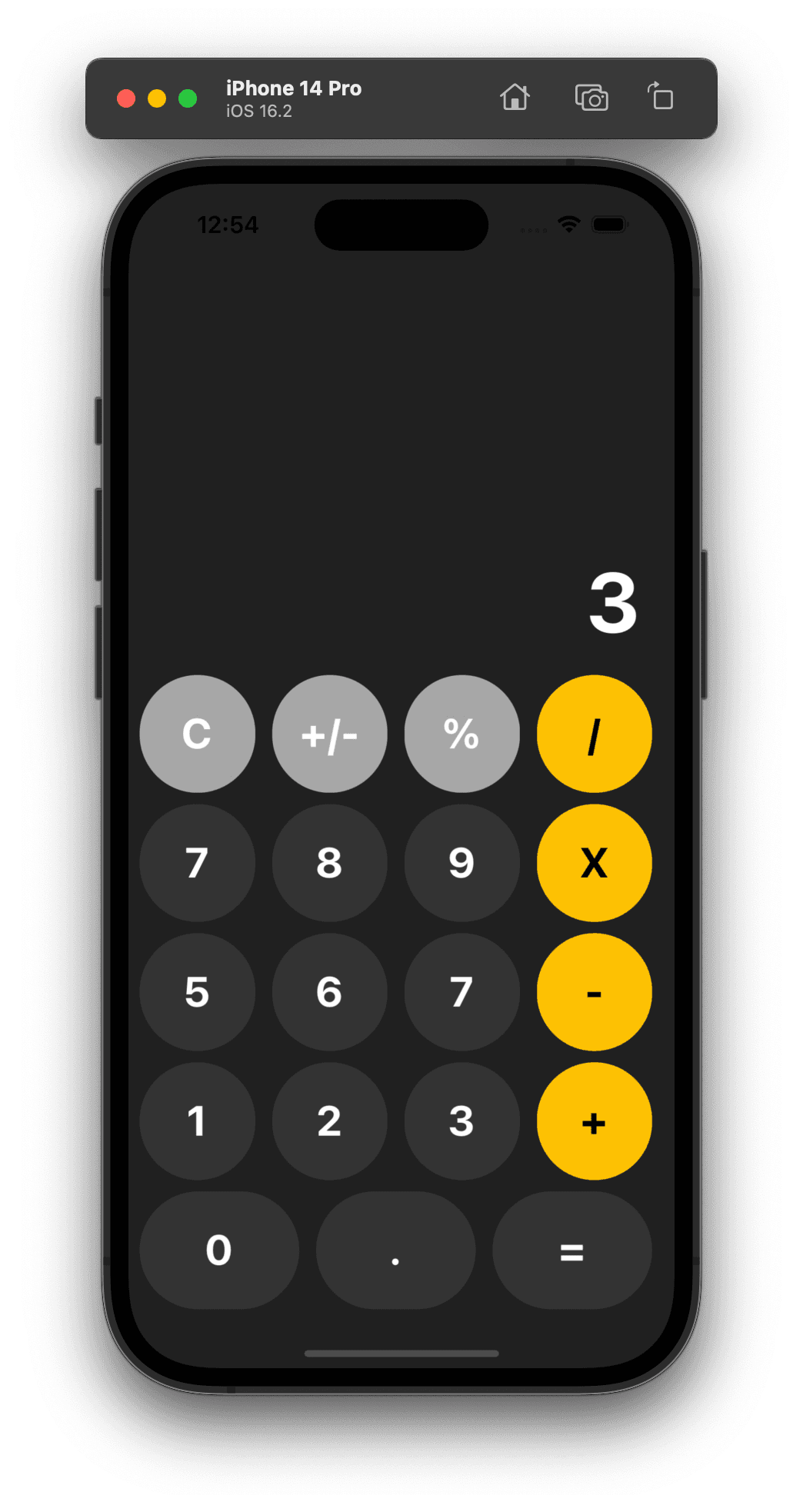
最後的執行畫面像這樣:
如果想要看完整的程式碼,可以到 Repo 看看。
 20230218021734
 20230224005423